![logo 324x70.png]](https://expertise.dovideqmedical.com/hs-fs/hubfs/Dovideq/Company/Website/logo%20324x70.png?height=40&name=logo%20324x70.png)
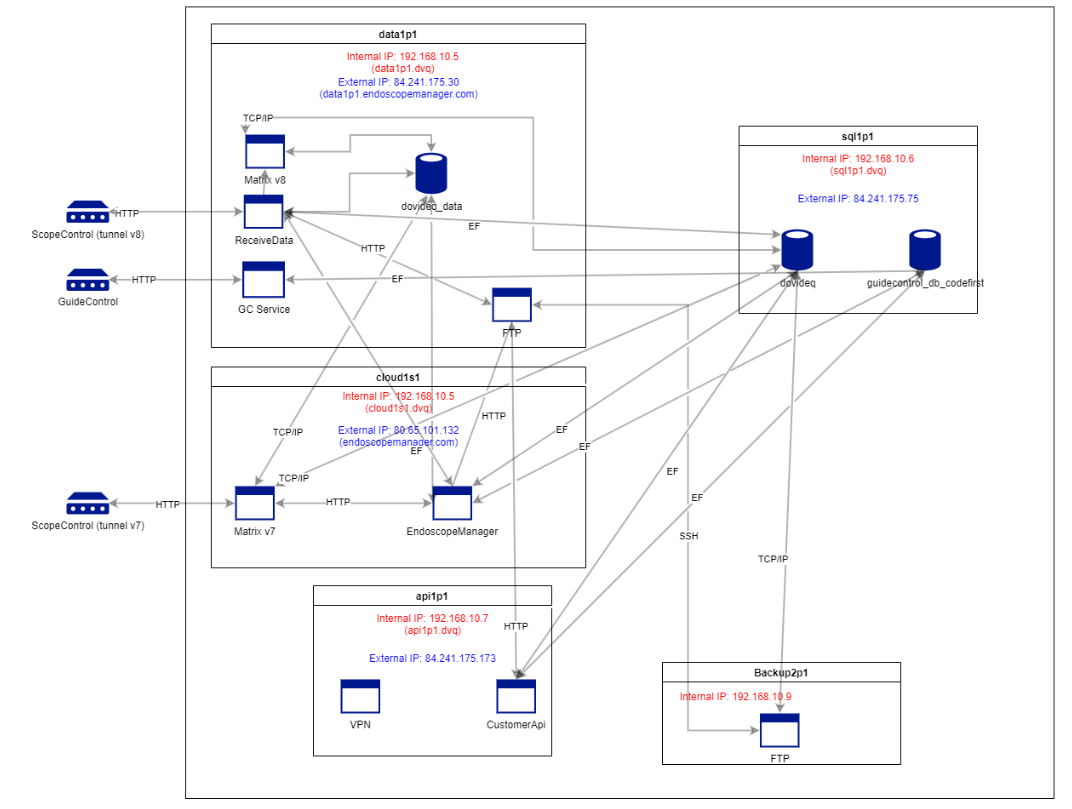
Dovideq products communicate through the following ports:
LightControl connects to
- data1p1.endoscopemanager.com (84.241.175.30) through HTTP / port 443
- *.balena-cloud.com trough TCP / port 443, UDP / port 123 (NTP time synchronizations) and UDP / port 53 (DNS name resolution)
GuideControl (without HDMI port) connects to
- to data1p1.endoscopemanager.com (84.241.175.30) through HTTP / port 443
GuideControl (with HDMI port) connects to
- to data1p1.endoscopemanager.com (84.241.175.30) through HTTP / port 443
- *.balena-cloud.com trough TCP / port 443 (web termimals and TLS endpoints), UDP / port 123 (NTP time synchronizations), UDP / port 53 (DNS name resolution)
LeakControl connects to
- dovidash.nl (84.241.175.56) through HTTPS / port 443
- *.balena-cloud.com trough TCP / port 443 (web termimals and TLS endpoints), UDP / port 123 (NTP time synchronizations), UDP / port 53 (DNS name resolution)
ScopeControl connects to
- data1p1.endoscopemanager.com (84.241.175.30) through SSH / port 22 (with tunnel version 8)
- endoscopemanager.com (80.65.101.132) through SSH / port 22 (with tunnel version older than 8)
Technical info for IT below
- DNS should resolve, eg
- nslookup endoscopemanager.com should return 80.65.101.132
- nslookup data1p1.endoscopemanager.com should return 84.241.175.30
- connection to endoscopemanager.com port 22 should be allowed from ScopeControl
- connection to data1p1.endoscopemanager.com port 22 should be allowed from Scopecontrol
You can find our checklist here.
Step by step procedure for ScopeControl diagnosis:
- Connect to the internet, turn on the device.
- Test an endoscope, check if the measurement comes through. If not, click force sync in EndoscopeManager.
- Check on the SC screen if a green or red dot appears at the top right.
- Check in EndoscopeManager account of end-user top right if they are online
- If not working and red dot, connect keyboard with ScopeControl
- Open Command Prompt on the ScopeControl
- Type the following and then push enter: ping endoscopemanager.com or any other website (optionally take a picture of the result)
- It should give a result with 4 succesfull connection attempts. If not, check cable, internet or consult your IT. If succesfull, continue. Take a picture
- Type the following and then push enter and optionally take a picture of the result: nslookup endoscopemanager.com (optionally take a picture of the result)
- It should give a result that 80.65.101.132 could be reached. If not, your IT should adjust allow access, see end of the list.
- Type the following and then push enter: nslookup data1p1.endoscopemanager.com (optionally take a picture of the result)
- It should give a result that 84.241.175.30 could be reached. If not, your IT should allow access, see end of the list.
- When connection is not succesfull, your IT will need IP and MAC address
- Type the following and then push enter: ipconfig / all
- Take picture of result of the CONNECTED ETHERNET adapter, where you will also see the physical address / MAC address XX-XX-XX-XX-XX
- Type the following and then push enter: ipconfig
- Take picture of result
- Send IT all the images and instruct them that device with MAC address XX-XX-XX-XX-XX should get a fixed IP in their network and have unrestricted access to both endoscopemanager.com and data1p1.endoscopemanager.com on port 22

