![logo 324x70.png]](https://expertise.dovideqmedical.com/hs-fs/hubfs/Dovideq/Company/Website/logo%20324x70.png?height=40&name=logo%20324x70.png)
To change the Treshold of a particular type of endoscope you first move your mouse cursor over the text [Endoscopes]
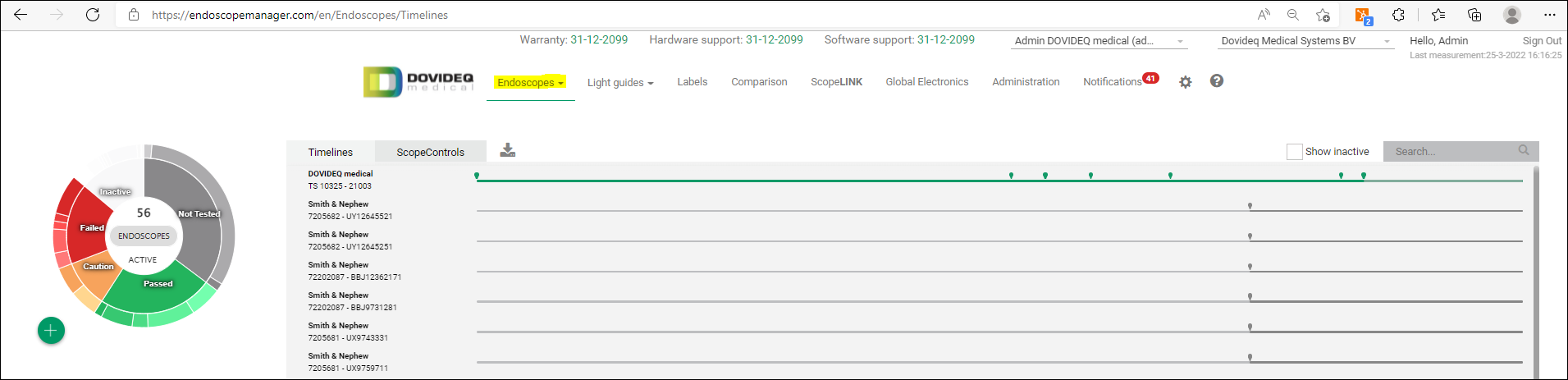
A dropdown menu appears with the following choices:

Select [Select Reference & Change Treshold]
Click [Type Tresholds] and find the Endoscope type you want to change the Tresholds of.

Click the type row and the following screen appears.
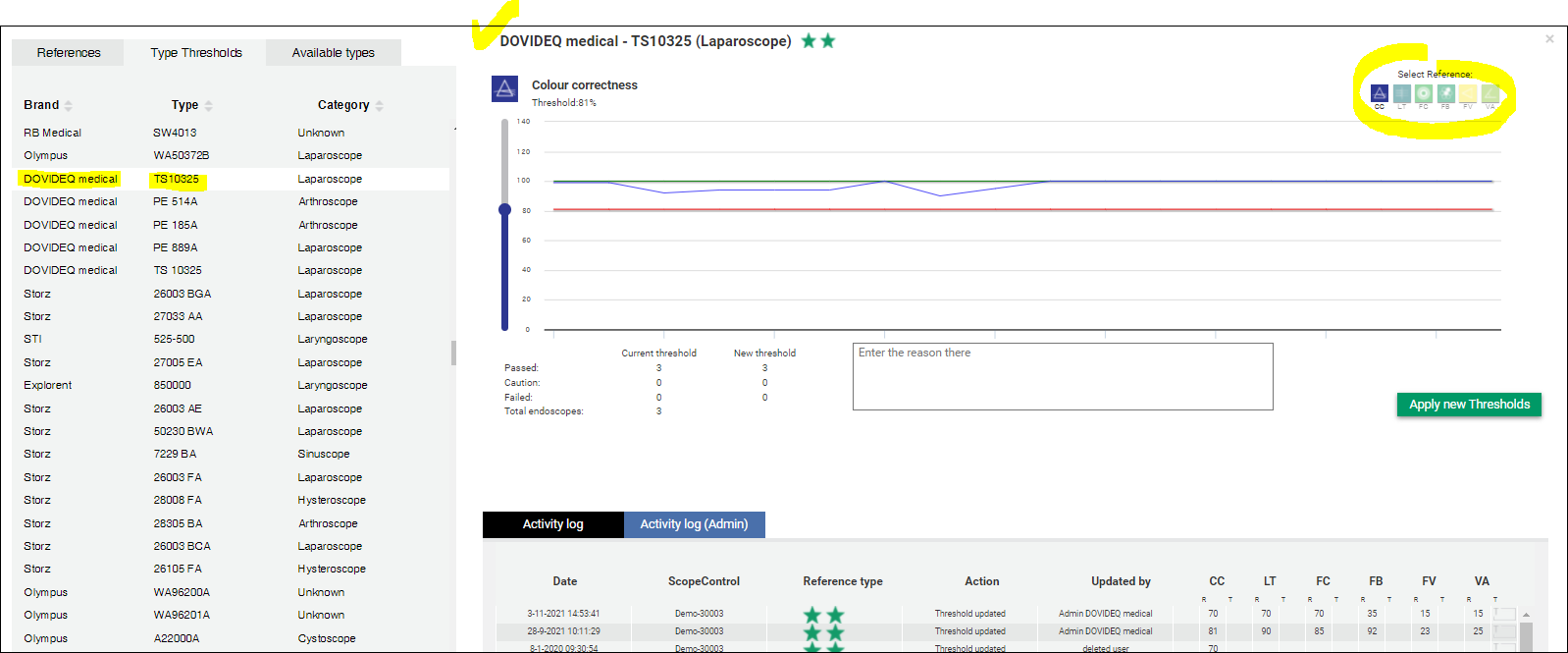
In the right upper corner you can choose from [Select References:] the parameter you want to change the Treshold of, click the parameter square [LT].
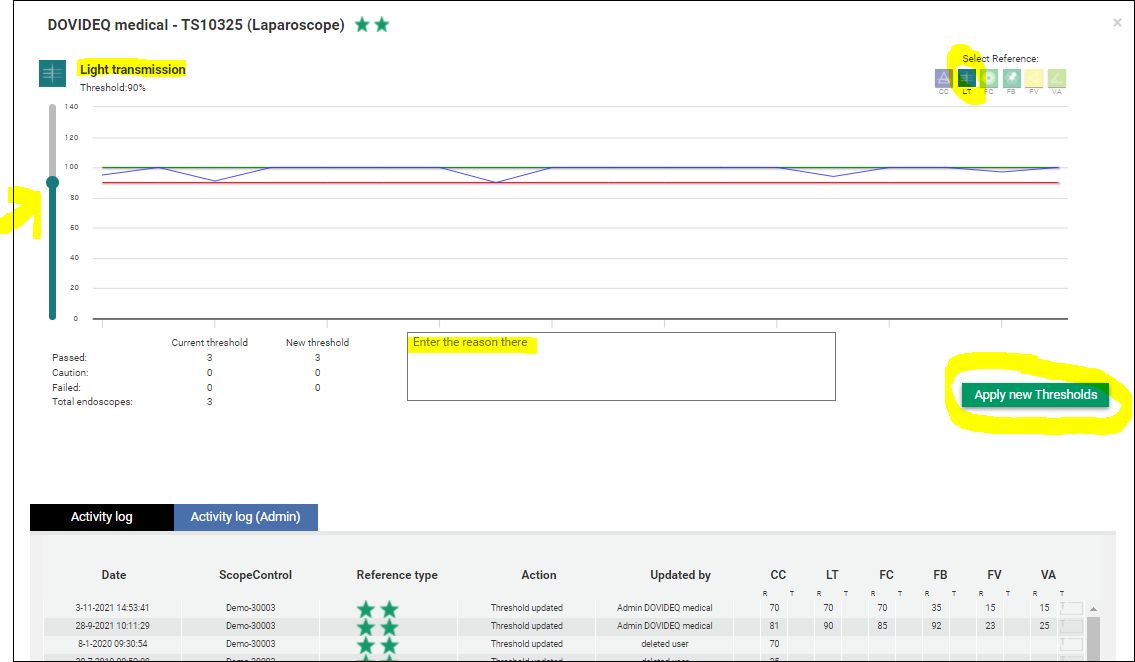
In our example we choose the "LT" value.
In this example we lower the "LT" Treshold to 69%
Moving the cursor at the arrow will move the whole "red" line
This way you can set the Treshold below the lowest value of all points along this line

In the comment box you can fill in a reason why you have changed this Treshold.
Then click [Apply new Tresholds].
The follow screen appears, the new value is confirmed.
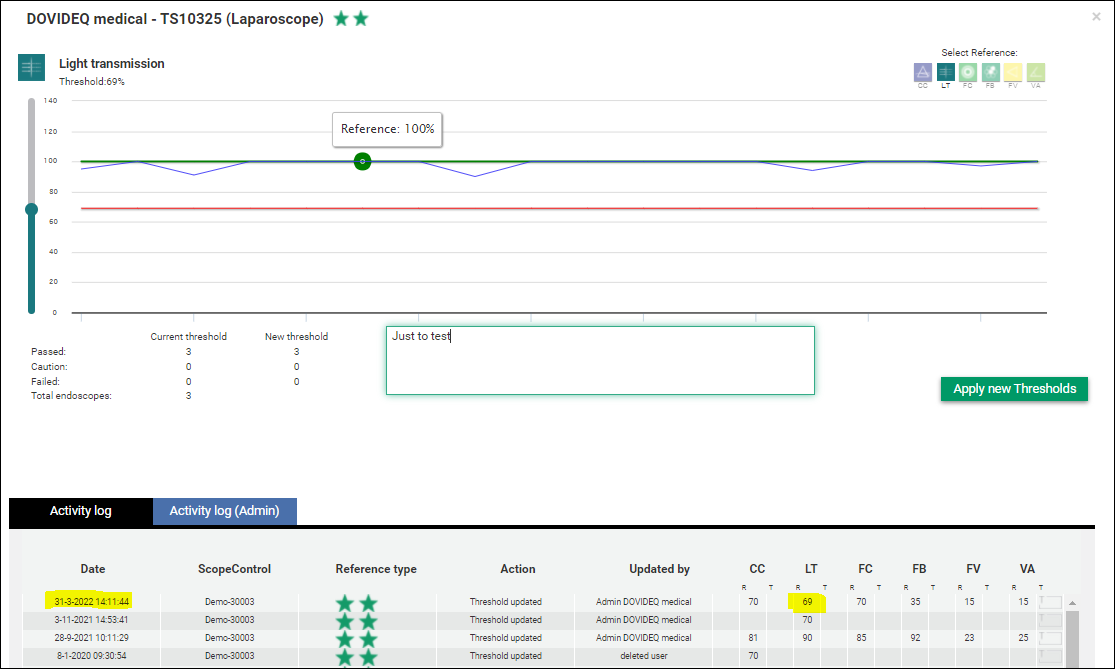
In the [Activity Log] you can see the date of change and the changed value again.
Remark: the upper line "Reference" value is always 100% and can't be changed!
You're done.

